
How to survey randomly

How to generate random Lists for Email Thermometer Blasts
Put in another way, how to survey randomly using Customer Thermometer ? We’ve been asked this a number of times and thought it was time to address it.
We strive to keep the app simple and because it’s not something that would be used by the majority of users – we feel it’s not right to add this functionality to the app itself. However, we always like to help where possible and we’ve put together a short guide below to help those wanting to introduce some randomness into their feedback surveys. Note this is only applicable to Email Thermometers of course.
How to create a randomly selected List, ready for upload into your Customer Thermometer account.
Whatever contact information you add to a List within your account will be sent by Customer Thermometer and so any randomness, does need to be introduced before uploading that List. We’re going to talk you through how to run an Excel macro to automatically select a random subset of your contact data, which can then be uploaded into your Customer Thermometer account. This is done using Excel’s randbetween() function.
-
-
-
- First of all you need to ensure you open the Sample_CSV.csv file which you can find here
-
-
and also from your Create New List screen.
- Populate the sheet with your contact data and ensure the file is saved with that same file name on your desktop.
- Let’s say you’ve 200 contacts – in this example, we will show you how to survey a random subset of 50 of them.
- First of all, you will need to add a new Macro to your Excel installation. This is a one time set up. Once saved, it can then be used on a regular basis.
- From inside Excel, press ALT+F11. This will bring up the VBA (slightly scary looking) dialogue.
- At the top, you’ll notice the navigator. You are looking for the PERSONAL.XLSB file – which is where your macros are stored. (If you don’t see it there – you’ll need to create it – find out how here
.)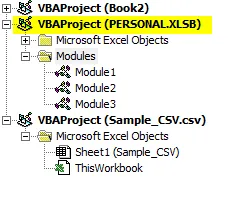
- Right click on the Modules folder and click insert. This will create a new Module.
- Double click on that Module and the editor will open up – it will essentially be blank. We’re now going to paste a pre-written macro inside it – to enable this randomness. Select the VBA code below, and copy it to your clipboard.
- Paste the lines of code into that new Module inside the VBA window and ensure you overwrite everything within it.
- Save your work – and you’re done.
Sub random()
'
' random Macro
 Range("O1").Select
 ActiveCell.FormulaR1C1 = "Random"
 Range("O2").Select
 ActiveCell.FormulaR1C1 = "=RANDBETWEEN(1,100000)"
 Range("O2").Select
 Selection.AutoFill Destination:=Range("O2:O136")
 Range("O2:O136").Select
 Columns("O:O").Select
 Selection.Copy
 Selection.PasteSpecial Paste:=xlPasteValues, Operation:=xlNone, SkipBlanks _
 :=False, Transpose:=False
 Range("O1").Select
 Application.CutCopyMode = False
 ActiveWorkbook.Worksheets("Sample_CSV").Sort.SortFields.Clear
 ActiveWorkbook.Worksheets("Sample_CSV").Sort.SortFields.Add Key:=Range( _
 "O1"), SortOn:=xlSortOnValues, Order:=xlAscending, DataOption:= _
 xlSortNormal
 With ActiveWorkbook.Worksheets("Sample_CSV").Sort
 .SetRange Range("A2:O10000")
 .Header = xlNo
 .MatchCase = False
 .Orientation = xlTopToBottom
 .SortMethod = xlPinYin
 .Apply
 End With
 ActiveWindow.SmallScroll Down:=24
 Range("A52").Select
 Range(Selection, ActiveCell.SpecialCells(xlLastCell)).Select
 Selection.Delete Shift:=xlUp
 ActiveWindow.SmallScroll Down:=-60
 Columns("O:O").Select
 Selection.Delete Shift:=xlToLeft
 Range("A1").Select
End Sub
Using the Macro
Now the Macro is saved – it’s now time to use it for the first time.
Ensure your cursor is positioned somewhere within the CSV file you have saved.
Go to the Developer Tab inside Excel (you may need to enable this – instructions to do that are here.) Click on Macros and then RUN the Random macro you’ve just created.
In a split second – you’ll see all those additional rows disappear and the ordering of your data change. This has worked because we assigned random numbers against each row, resorted them in ascending order and then deleted that column.
You can now upload your newly created randomized list into Customer Thermometer in the normal way.
Note, if you would like more than 50 rows of data, that’s easily changed. Simply head back into the VBA window and find “Range("A52").Select” Change 52 to 102 for 100 rows… 202 for 200 rows… you get the jist.
Can you help develop this concept?
We hope you found that helpful. Drop us a line if you can improve on what we’ve done!